Getting Started
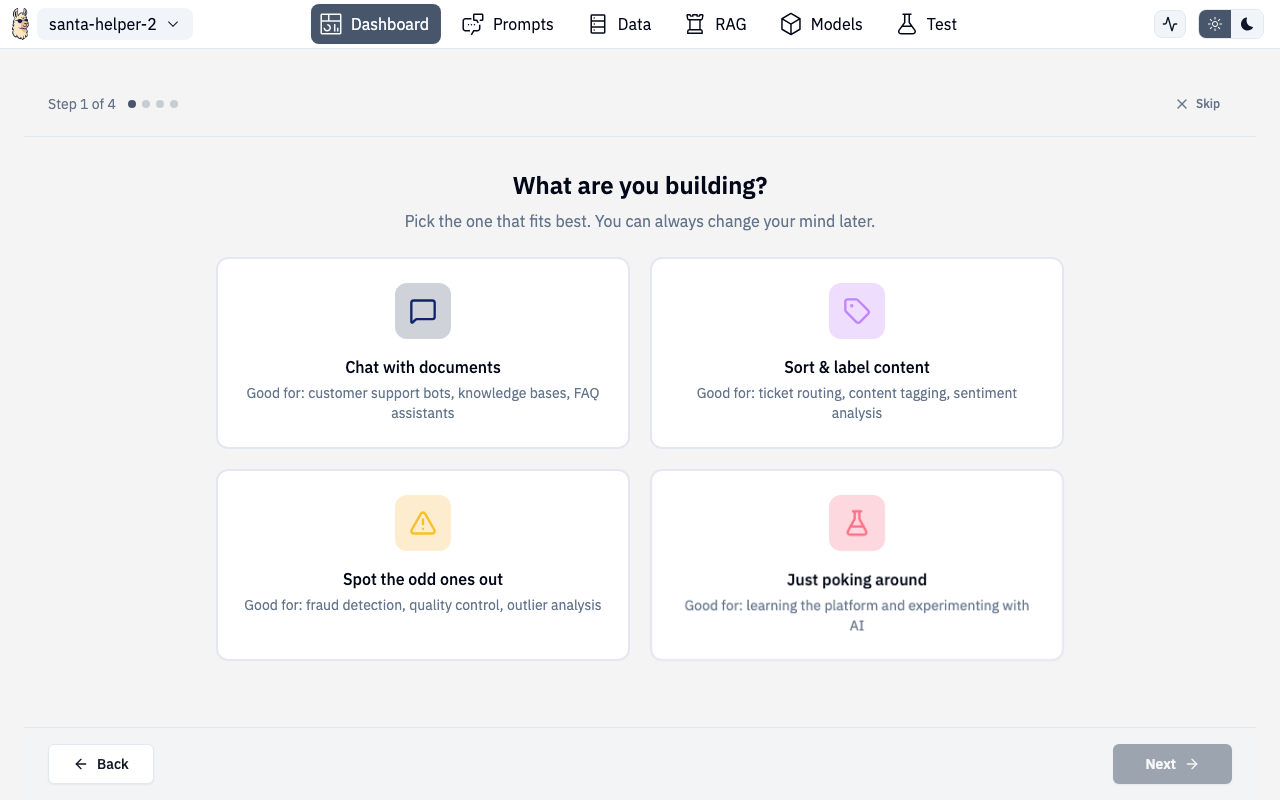
When you open a project for the first time, the Designer walks you through an onboarding wizard that builds a personalized getting-started checklist based on your goals.
Onboarding Wizard
The wizard asks four quick questions to understand what you're building:
Step 1: Project Type
Choose what kind of AI project you're building:
| Type | Description |
|---|---|
| Chat with documents | Customer support bots, knowledge bases, FAQ assistants |
| Classify text | Sentiment analysis, ticket routing, content categorization |
| Detect anomalies | Fraud detection, system monitoring, quality control |
| Summarize documents | Report generation, meeting notes, research digests |
| Just exploring | Not sure yet — see what's possible |
Step 2: Data Status
Tell the wizard about your data:
- Use sample data — pick from built-in demo datasets matched to your project type
- I have my own data — upload files directly in the wizard (drag-and-drop supported)
- No data yet — skip for now, add data later
When uploading your own data, you can name your dataset and add multiple files right in the wizard.
Step 3: Deploy Target
Where will this run?
- On my own turf — local machine, on-prem, or air-gapped
- Up in the cloud — AWS, GCP, Azure
- Haven't decided yet — no worries
Step 4: Experience Level
How much guidance do you want?
- Hold my hand — step-by-step walkthroughs
- Just nudge me along — know the basics, need direction
- Get out of my way — just the checklist
Completion
After answering, the wizard generates a personalized checklist and transitions you to the dashboard. A brief loading animation shows while your guide is being built.
You can skip the wizard at any time by pressing Escape or clicking the X button.
Getting Started Checklist
After the wizard completes, a checklist appears at the top of the dashboard with steps tailored to your project type and experience level.
How it works
- Each step has a checkbox, title, and a link to the relevant section
- Clicking a step's link navigates you to the right page
- Steps auto-complete when you finish the action (e.g., uploading data marks "Add data" complete)
- You can manually check steps off too
- Confetti fires when you complete a step 🎉
- Collapse the checklist to a compact progress bar when you don't need it
Checklist Navigator
When you navigate away from the dashboard via a checklist link, a floating navigator appears showing:
- Which checklist step you're on
- Progress through the overall checklist
- Quick navigation back to the dashboard or to the next step
- Contextual tips for the current page
Restarting the Wizard
If you skipped or dismissed the wizard, a banner on the dashboard lets you restart it anytime. Click "Set up my guide" to re-run the wizard with fresh answers.