Designer Web UI
The LlamaFarm Designer is a modern, browser-based interface for building and managing AI projects. It provides a visual way to configure projects, manage datasets, test prompts, and interact with your AI systems—all without touching the command line.
What is the Designer?
The Designer is a React-based web application that complements the lf CLI. While the CLI excels at automation and scripting, the Designer offers:
- Visual project management: Create and configure projects through an intuitive interface
- Interactive dataset management: Upload files via drag-and-drop, configure processing strategies visually
- Real-time configuration: Edit your
llamafarm.yamlwith live validation and helpful hints - Integrated chat interface: Test your AI project with full RAG context
- Dual-mode editing: Switch between visual designer and direct YAML editing
When to Use the Designer vs CLI
Use the Designer when you want to:
- Quickly prototype and experiment with configurations
- Visualize your project structure and relationships
- Upload and manage datasets interactively
- Test prompts and see results in real-time
- Get immediate feedback on configuration errors
Use the CLI when you want to:
- Automate workflows and integrate with CI/CD
- Process large batches of data
- Script repetitive tasks
- Work in headless/remote environments
Accessing the Designer
The easiest way to start the Designer is through the lf start command:
lf start
This automatically launches:
- The FastAPI server (port 14345)
- The RAG worker
- The Designer web UI (port 14345)
Once started, open your browser to:
http://localhost:14345
The Designer is served by the same FastAPI server, so it shares port 14345 with the API.
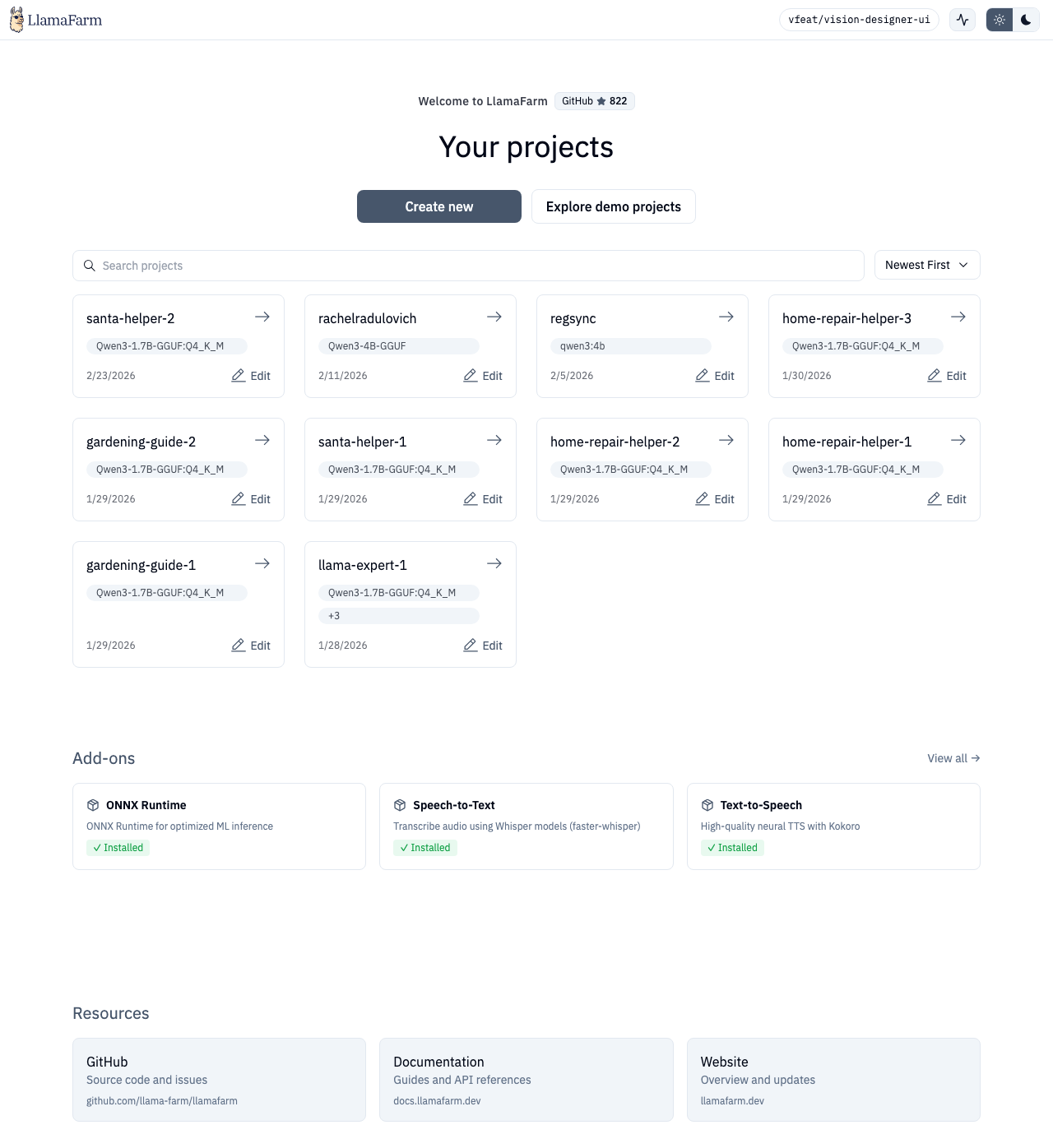 The Designer home page where you can create and select projects
Main Sections
The Designer is organized into several key sections:
Projects
Switch between projects or create new ones. Each project has its own configuration, datasets, and chat history.
Dashboard
Get an overview of your active project, including:
- Project configuration summary
- Dataset statistics
- Quick actions for common tasks
- Version history
Data
Manage your datasets and processing strategies:
- Upload files via drag-and-drop or file picker
- Create and configure data processing strategies
- Monitor ingestion progress
- View dataset details and file lists
Models
Configure runtime providers and models:
- Select from available models (Ollama, OpenAI, etc.)
- Configure model parameters (temperature, max tokens, etc.)
- Test model connections
- Download models for local use
Databases
Set up RAG (Retrieval-Augmented Generation):
- Configure vector databases
- Choose embedding models
- Select retrieval strategies
- Test queries against your data
Prompts
Design and test system prompts:
- Create prompt templates
- Test prompts with different inputs
- Compare outputs across models
- Save effective prompts to your configuration
Chat
Interactive testing with your AI project:
- Chat with full project context
- Toggle RAG on/off
- View retrieved documents
- Debug responses
Config Editor Mode
Every section includes a toggle to switch between Designer (visual) mode and Config Editor (YAML) mode. In Config Editor mode, you can:
- Directly edit the
llamafarm.yamlfile - See real-time validation errors
- Search and navigate large configurations
- Copy/paste configuration snippets
Next Steps
- Explore the Features Guide for detailed walkthroughs of each section
- Learn about Development Setup if you want to contribute or customize the Designer
- Check out the Quickstart Guide to create your first project
Troubleshooting
Designer won't load:
- Ensure the server is running (
lf startor check Docker containers) - Verify the server is accessible at
http://localhost:14345/health/liveness - Check browser console for connection errors
Can't connect to API:
- The Designer expects the server at
localhost:14345by default - If using a custom setup, set the
VITE_APP_API_URLenvironment variable
Changes not saving:
- Check for validation errors (red highlights in Config Editor)
- Ensure you have write permissions to your project directory
- Look for error messages in the top-right toast notifications